

Customized Search Block in EPiServer Find
In the latest version of EPiServer Find, we have added a new feature for editors. It’s Customized Search Block. This feature provides editors with a block that shows a dynamic list of links to the content matching a search criteria. Search for the content is based on EPiServer Find's powerful capabilities. This block can be used, for example, to display related content such as “you may also like” links etc.
Settings
The block settings let editors choose how to display the list as well as fine tune the search query.
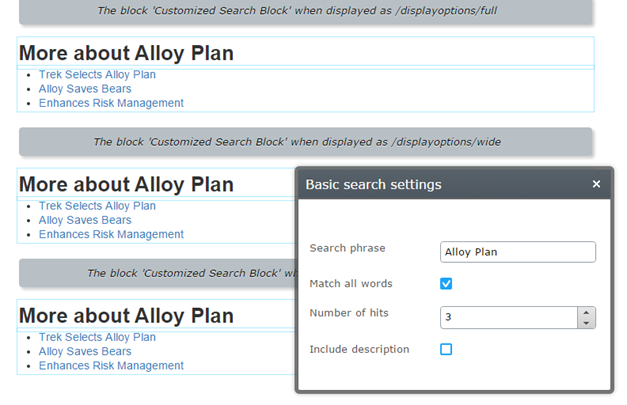
Basic block settings in On-Page editing mode:
All settings for the block available in the All Properties mode:
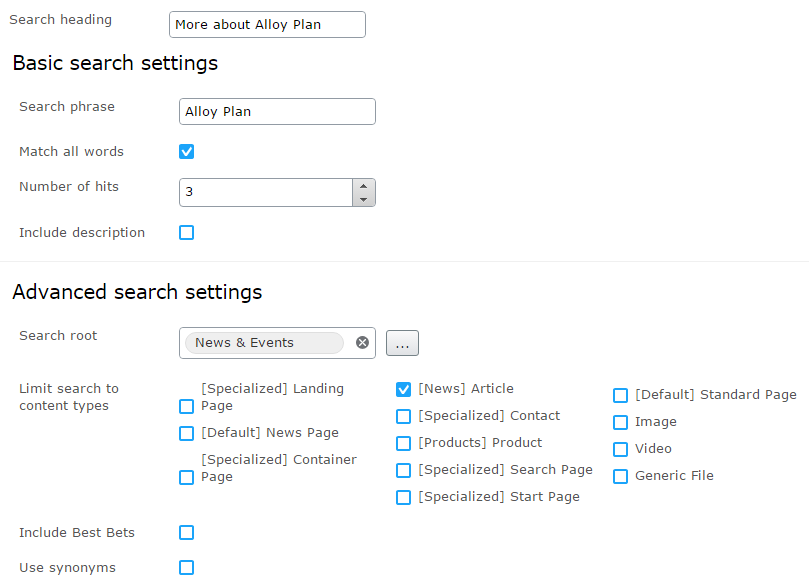
Details about each parameter can be found in the documentation.
Customization
You can adjust the block's appearance by adding CSS classes described in the styling guide for developers. What if we want to customize a block's rendering? There are several ways to do it, but first let’s take a look on how the block is built. Here is a class diagram for content types:
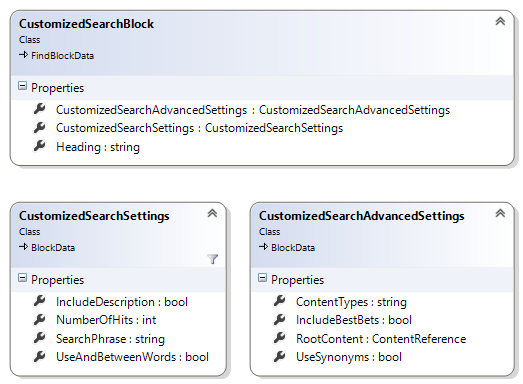
CustomizedSearchBlock has three properties and two of them are also blocks: CustomizedSearchSettings and CustomizedSearchAdvancedSettings. The last two blocks can’t be instantiated by editors and are used only to group the settings. Such grouping lets you use On-Page editing for basic settings and provides visual controls grouping in All properties mode.
All logic for creating a query to EPiServer Find is placed in EPiServer.Find.Blocks.ICustomizedSearchBlockService implementation. It has two methods:
public interface ICustomizedSearchBlockService
{
    ITypeSearch<ISearchContent> CreateSearchQuery(CustomizedSearchBlock currentBlock);
    CustomizedSearchResultsViewModel CreateViewModel(UnifiedSearchResults results, bool includeDescription);
}
CreateSearchQuery method accepts CustomizedSearchBlock instance as an argument and returns ITypeSearch. The returned value is an EPiServer Find search request prepared with a query and filters according to the blocks settings and ready to call GetResult on it. CreateViewModel method takes UnifiedSearchResults and returns a view model for the block:
namespace EPiServer.Find.Blocks.Models
{
    public class CustomizedSearchResultsViewModel
    {
        public IList<SearchListItem> Items { get; set; }
        public bool IncludeDescription { get; set; }
    }

    public class SearchListItem
    {
        public string Title { get; set; }
        public string Url { get; set; }
        public string Description { get; set; }
    }
}
Creating a new renderer
The easiest way to provide a new rendering for the block is to create a new MVC Controller and a View. Because of implementation specificity, the new Controller should inherit from EPiServer.Find.Blocks.Controllers.CustomizedSearchSettingsBlockController:
using System.Web.Mvc;
using EPiServer.Find.Blocks;
using EPiServer.Find.Blocks.Controllers;
using EPiServer.Find.Blocks.Models.ContentTypes;

namespace CustomizedSearchBlock.Controllers
{
    public class CustomRenderingSearchBlock : CustomizedSearchSettingsBlockController
    {
        public CustomRenderingSearchBlock(ICustomizedSearchBlockService customizedSearchBlockService, IContextHelper contextHelper)
            : base(customizedSearchBlockService, contextHelper){}

        public override ActionResult Index(CustomizedSearchSettings currentBlock)
        {
            var model = CreateSearchResultsViewModel(currentBlock);
            return PartialView("Index", model);
        }
    }
}
This controller is responsible for rendering the actual list. The list's heading is rendered by the parent blocks controller.
Then, you need to add a view:
@model EPiServer.Find.Blocks.Models.CustomizedSearchResultsViewModel
<dl>
    @foreach (var link in Model.Items)
    {
        <dd>
            <a href="@link.Url">@link.Title</a>
        </dd>
    }
</dl>
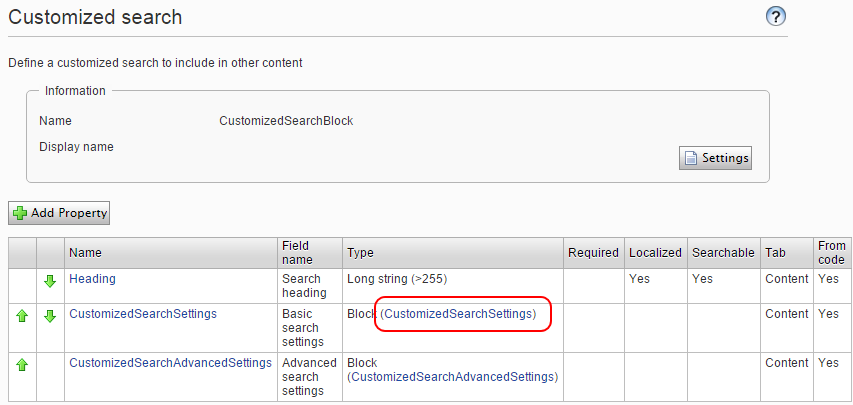
In the settings view for the CustomizedSearchSettings block, click the Settings button and choose the new controller in the MVC Template drop down. Now, the new renderer should be used when the block is displayed.
If the data provided in the CustomizedSearchResultsViewModel is not enough, for example if we want to render an image together with a link, you can access search results directly using the ICustomizedSearchBlockService and creating your own view model. There is an example of such implementation on GitHub as well as the code for examples above.

Comments