


How to create a nice looking admin plugin
Creating an admin plugin is easy. But making it look good and blend in with the core components isn’t documented at all.
In this blog post I will try to shed some light on how to achieve the EPiServer built in look and feel.
Initial setup
After creating your plugin make the following 3 changes. Credit to Dan Mathews who blogged about it first.
1. Inherit the EPiServer.UI.SystemPageBase (You need to add a reference to the EPiServer.UI assembly.
2. Use the EPiServer UI masterpage.
protected override void OnPreInit(EventArgs e)
{
  base.OnPreInit(e);
  this.MasterPageFile = ResolveUrlFromUI("MasterPages/EPiServerUI.master");
}
3. Register the following in system.web-pages-controls in web.config
<add tagPrefix="EPiServerUI" namespace="EPiServer.UI.WebControls" assembly="EPiServer.UI" />
<add tagPrefix="EPiServerScript" namespace="EPiServer.ClientScript.WebControls" assembly="EPiServer" />
<add tagPrefix="EPiServerScript" namespace="EPiServer.UI.ClientScript.WebControls" assembly="EPiServer.UI" />
Heading and description
To add a header and intro text to your plugin you can set it via the following in OnPreInit.
this.SystemMessageContainer.Heading = "Example heading";
this.SystemMessageContainer.Description = "Introduction text";
Contentplaceholder
When creating your plugin you need to add the front-end code to the MainRegion contentplaceholder.
<asp:content contentplaceholderid="MainRegion" runat="server"><div class="epi-formArea epi-paddingHorizontal"></div>
</div>You need the “epi-formArea” on the div containing the code or else everything will go bananas.
The “epi-paddingHorizontal” does exactly what is says so removing it will start everything at the left side.
Grouping
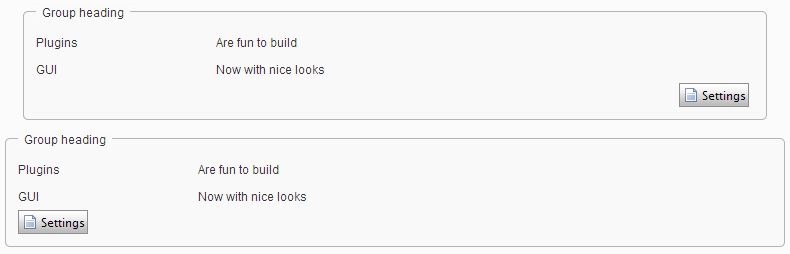
If you would like to create a nice group of content with a heading just create a fieldset.
<fieldset> <legend>Group heading</legend> <dl> <dt>Plugins</dt> <dd>Are fun to build</dd> <dt>GUI</dt> <dd>Now with nice looks</dd> </dl> <div class="floatright"> <episerverui:toolbutton id="SettingsButton" runat="server"text="<%$ Resources: EPiServer, button.settings %>"tooltip="<%$ Resources: EPiServer, button.settings %>"skinid="File" />
</div></fieldset>
Example with and without “floatright” and “epi-paddingHorizontal”..
Tabs
If you want to create tabs you first need to create a tabstrip. The target id need to be set and point to a asp panel. The “epi-padding” class on the panel creates a horizontal padding below the tabs and the content.
Tabstrip
<EPiServerUI:TabStrip  runat="server" id="actionTab" EnableViewState="true" GeneratesPostBack="False" targetid="tabView" supportedpluginarea="SystemSettings">
    <EPiServerUI:Tab Text="Tab1" runat="server" ID="Tab1" />
    <EPiServerUI:Tab Text="Tab2"  runat="server" ID="Tab2" />
</EPiServerUI:TabStrip>

<asp:Panel runat="server" ID="tabView" CssClass="epi-padding">
</asp:Panel>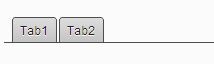
To add content to each tab you add a runat=”server” controls in the panel. The first equals tab1 and so forth.
Tab 1 – general content
<div class="epi-formArea" ID="GeneralTable" runat="server"> <div class="epi-size25"> <div> <asp:Label runat="server" AssociatedControlID="EPsSiteName" Text="Label" /> <asp:TextBox Columns="50" ID="EPsSiteName" runat="server"></asp:TextBox> </div> <div class="epi-indent"> <asp:CheckBox ID="EPfEncryptSensitiveInformation" runat="server"></asp:CheckBox> <asp:Label ID="Label3" AssociatedControlID="EPfEncryptSensitiveInformation" Text="Label" runat="server" /> </div> </div> </div>
Class “epi-size25” creates the spacing between the first label and the textbox.
To push the content to right you use the “epi-indent” class.

Tab 2 – tables
You can create nice tables manually or using for example a gridview. If creating a table manually you need to have the class “epi-default” on the table.
<table class="epi-default">
 <tr>
<thead>
 <th>Header 1</th>
 <th>Header 2</th>
</thead>
 </tr>
 <tr>
 <td>row 1, cell 1</td>
 <td>row 1, cell 2</td>
 </tr>
 <tr>
 <td>row 2, cell 1</td>
 <td>row 2, cell 2</td>
 </tr>
 </table>

Buttons
The tab solution won’t be complete without at least one button to let the user commit some changes ore something like that. Adding the code below with give you a horizontal line and a right floating button.
<div class="epi-buttonContainer">
   <EPiServerUI:ToolButton  DisablePageLeaveCheck="true"   runat="server" SkinID="Save" text="Save" ToolTip="Tip" />
</div>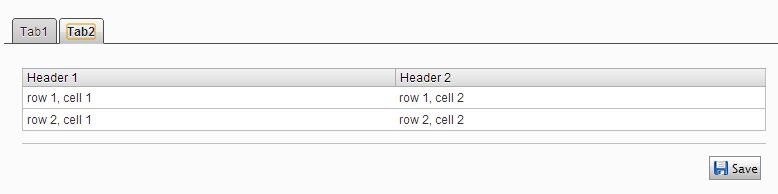
Notice the SkinID attribute. There exist a lot of toolbutton skins. You can check out which exist in the Toolbutton.skin file in folder (64 bit os) : C:\Program Files (x86)\EPiServer\CMS\7.0.586.1\Application\App_Themes\Default
Jquery
Jquery is automatically included and ready to use in your plugin.
I’ve added the example code to the code section to make it easier to get started..

Comments