

Utilizing the Microsoft Office Add-In and Client Components with EPiServer CMS
EPiServer CMS provides tools for integrating with Microsoft Office client applications which include the Microsoft Office Add-In and the EPiServer CMS Client Components. This post describes the process for enabling, installing, and activating Microsoft Office integration and client components for EPiServer CMS.
The Microsoft Office Add-In enables Editors to publish files to an EPiServer site directly from Microsoft Word, Excel, and PowerPoint.
The EPiServer CMS Client Components provide the following capabilities:
- Integrated spell checker
- Export form data to Excel
- Drag and drop and multiple file upload into the EPiServer File Manager
To utilize these features, Office integration must be enabled and activated on each CMS site and the Microsoft Office Add-In and EPiServer CMS Client Components must be installed on each client machine that is to utilize the components.
Enabling Office Integration
Office integration must first be enabled in the web.config file for each CMS site on which you wish to utilize it.
To enable Office Integration on your CMS site…
1. Open the web.config file from the root of the site on which you wish to enable the Office Add-In and Components and uncomment the following text. Note that the portion of the path preceding “/OfficeIntegration” will vary depending on what was configured when the site was created (e.g. the “Relative Path” setting on the “Create new EPiServer CMS site” dialog of the EPiServer Deployment Center).
<!--<location path="UI/OfficeIntegration">
<system.web>
<authorization>
<allow users="*" />
</authorization>
</system.web>
</location>-->
2. Change the “UI” portion of the “path” attribute to the “Relative Path” that was set for the “EPiServer User Interface” on the “Create new EPiServer CMS Site” dialog when the site was created with the EPiServer Deployment Center. For example…
<location path="Cms/OfficeIntegration">
<system.web>
<authorization>
<allow users="*" />
</authorization>
</system.web>
</location>
Troubleshooting
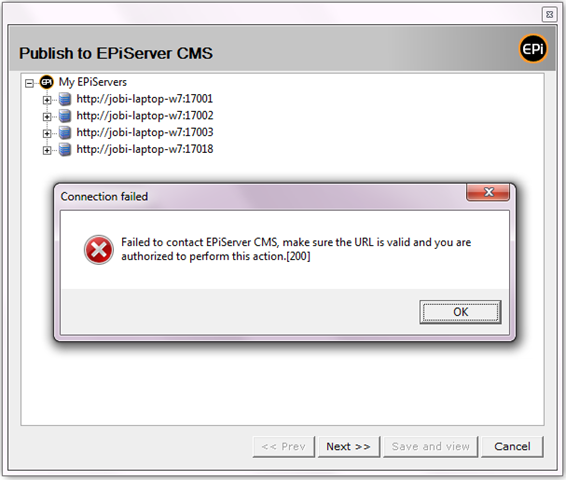
If you receive the following error it is likely because you did not enable Office integration as described above.
“Failed to contact EPiServer CMS, make sure the URL is valid and you are authorized to perform this action.[200]”
Installing the Microsoft Office Add-In
The Microsoft Office Add-In must be installed on each client computer that is to utilize it. This can be done from Edit Mode in CMS.
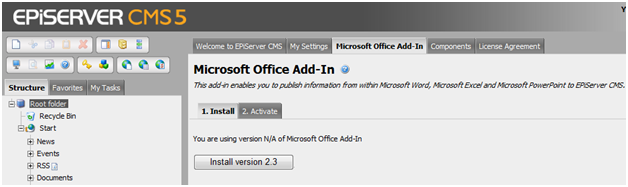
1. From the client machine, in CMS Edit Mode, select the “Root folder” in the “Structure” pane and select the “Microsoft Office Add-In” tab.
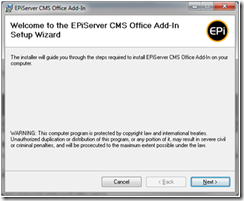
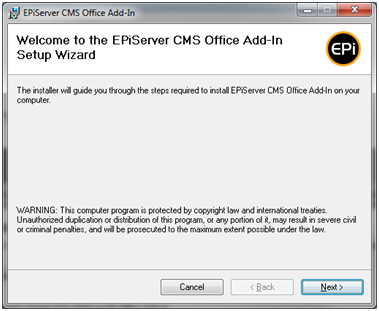
2. Click the “Install version x.x” button and follow the instructions in the EPiServer CMS Office Add-In Wizard.
Activating the Microsoft Office Add-In
The Microsoft Office Add-In must be activated for each CMS site on which you wish to utilize it.
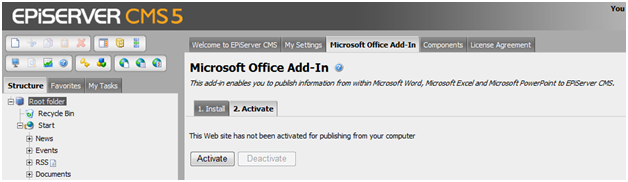
1. In CMS Edit Mode, select the “Root folder” in the “Structure” pane and select the “Microsoft Office Add-In” tab.
2. Select the “2. Activate” tab and click the “Activate” button.
Troubleshooting
If the client machine is running Windows Vista, Windows Server 2008, or Windows 7, the activation may fail silently but appear that it succeeded because of Internet Explorer security settings. An easy workaround for this is to to add the CMS site to the Trusted Sites in Internet Explorer on the client machine.
Make sure the siteUrl attribute of the siteSettings element in web.config is correct (e.g. the machine or domain name in web.config matches the name in the URL you are accessing to activate the add-in). The activation will fail silently if the siteUrl is incorrect because the add-in is activated for this URL. A colleague of mine ran into this issue when setting up CMS on an Amazon EC2 instance because the machine gets renamed every time the instance is brought up.
Installing the Client Components
1. From the client machine, in CMS Edit Mode, select the “Root folder” in the “Structure” pane and select the “Components” tab.
2. Click the “Install version x.x” button.
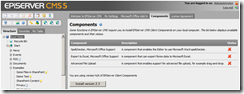
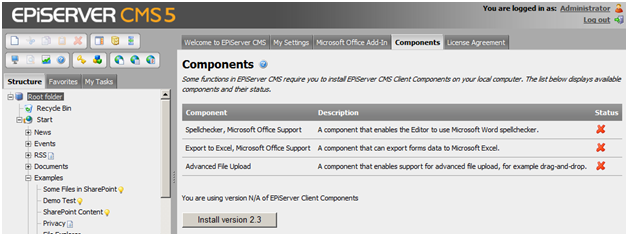
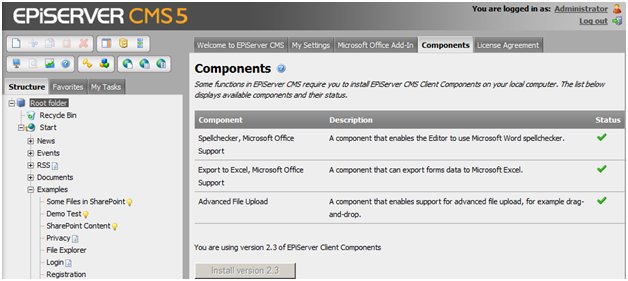
3. The Components tab should look like the following when the components have been successfully installed.
Troubleshooting
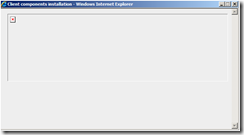
You may not be able to install the client components via the browser on Windows Vista or Windows Server 2008 depending on your Internet Explorer security settings. In this scenario, the “Client components installation” window below will be displayed after clicking the “Install version x.x” button, but the client components will not be installed.
You can work around this by manually extracting the client component DLLs from…
- CMS 5 - C:\Program Files\EPiServer\CMS\<CMS version>\Application\UI\ActiveX\EPiServerClientComponents
- CMS 6 - C:\Program Files\EPiServer\CMS\<CMS version>\Application\UI\CMS\ActiveX
…CAB on the server and registering them manually on the client machine using the following commands:
regsvr32.exe EPiFileUpload.dll
regsvr32.exe EPiOfficeIntegration.dll

Comments