

Installing Composer 4.0 on an Alloy Templates Site
Based on CMS 6.0 and Composer 4.0
Introduction
Composer 4.0 works well with some of the EPiServer CMS 6.0 template packages. However, a few issues have been found when installing on an Alloy Templates based site requiring some extra steps to get it working as expected. This blog describes the issues found and the workarounds necessary.
The following issues have been identified:
· Installation error with ExcelPageProvider
· Functionality blocked
· Style Sheet issues
· JQuery library duplicated
It is important to note that EPiServer Product Management is aware of these issues and have plans to fix them in upcoming versions of the associated products. Special thanks to Hieu Doan and the dev team for researching and providing most of the details below.
First download the Composer Software and Templates. Continue by installing the Composer software and the Composer Sample Package templates on your server or workstation so that they will be available via Deployment Center for your website. However, do not proceed with the Deployment Center instructions until resolving item 1 below. After resolving item 1 install Composer to your site and move on to item 2.
1. Installation error with ExcelPageProvider
Symptom
When installing Composer on an Alloy site, an error with the ExcelPageProvider may be seen similar to the following:
An unhandled error has occured:
Object reference not set to an instance of an object.
When executingAt C:\Program Files (x86)\EPiServer\CMS\6.0.530.0\Install\Modules\Composer 4.0\
Install Composer.ps1:133 char:20
+ Add-EPiServerData <<<< $episerverDataFile $selectedWebApplication.Physical
Path $selectedWebApplication.ApplicationName -updateStartPageAttributeFalse
=
Get-EPiIsBulkInstalling
Error - System.Management.Automation.CmdletInvocationException: Object reference not set to an instance of an object. ---> System.NullReferenceException: Object reference not set to an instance of an object.
at EPiServer.Demo.ExcelPageProvider.ExcelPageProvider.Initialize(String name, NameValueCollection configParams)
at EPiServer.Core.PageProviderMap.AddPageProvider(ProviderSettings pageProviderSetting)
at EPiServer.Core.PageProviderMap.LoadPageProviders(ProviderSettingsCollection pageProvidersCollection)
at EPiServer.Core.PageProviderMap..ctor(ProviderSettingsCollection pageProviders)
at EPiServer.DataFactory..cctor() at EPiServer.Install.InstallationManager.Install(Installer installer)
at EPiServer.Install.CMS.Modules.ModulesInstallationManager.ImportData(InstallationManager installationManager, String destinationDirectory, String virtualDirectory, String importSource, DatabaseDestination destination, Boolean updateStartPageAttribute)
at EPiServer.Install.CMS.Modules.CmdLets.AddEPiServerData.ProcessRecord()
at System.Management.Automation.Cmdlet.DoProcessRecord()
at System.Management.Automation.CommandProcessor.ProcessRecord()
--- End of inner exception stack trace ---
at System.Management.Automation.Internal.PipelineProcessor.SynchronousExecuteEnumerate(Object input, Hashtable errorResults, Boolean enumerate)
at System.Management.Automation.PipelineNode.Execute(Array input, Pipe outputPipe, ArrayList& resultList, ExecutionContext context)
at System.Management.Automation.StatementListNode.ExecuteStatement(ParseTreeNode statement, Array input, Pipe outputPipe, ArrayList& resultList, ExecutionContext context)
Workaround
The HttpContext.Current value needs to be checked to see if it is null before allowing the code to execute further. Otherwise the installation of Composer will fail. To resolve the issue the following code needs to be added to the Excel Page Provider (ExcelPageProvider.cs):
///<summary>
/// Initializes the provider from configuration settings
///</summary>
///<param name="name">Key</param>
///<param name="config">Config params</param>
public override void Initialize(string name, NameValueCollection configParams)
{
     base.Initialize(name, configParams);

     if (HttpContext.Current == null)
          return;
Before installing Composer, and after the code above has been added, the Excel Page Provider project must be re-compiled and the new dll copied to the bin folder of your website (e.g. C:/EPiServer/Sites/<sitename>/bin/).
Note, as an alternative, you do have the option to install Composer without modifying and recompiling the Excel Page Provider by temporarily disabling the Excel Page Provider in the episerver.config when installing Composer. This can be found in the <pageProvider> node.
2. Functionality blocked
Symptom
After installing Composer you may receive an error message when creating a new Composer page and importing the Composer Sample Package definition file:
The Controls collection cannot be modified because the control contains a code blocks (i.e. <% … %>) error.
Workaround
The dynamic controls adding process in Composer would fail as a result of the following line of code in /Templates/Demo/MasterPages/MasterPage.master:
<div class='<%= ((Page as EPiServer.PageBase).CurrentPage.PageTypeName.EndsWith("Start page")) ? "Page":"PageInner" %>'>
In order to resolve this issue the css class setter must be moved into the code behind:
a. In the MasterPage.master…
change:<div class='<%= ((Page as EPiServer.PageBase).CurrentPage.PageTypeName.EndsWith("Start page")) ? "Page":"PageInner" %>'>
to:
<div id="PageArea"runat="server">b. In the MasterPage.master.cs add the yellow highlighted line of code below:
///<summary>
/// Raises the <see cref="E:System.Web.UI.Control.Init"/> event.
///</summary>
///<param name="e">An <see cref="T:System.EventArgs"/> object that contains the event data.</param>
protected override void OnInit(EventArgs e)
{
base.OnInit(e);
ScriptManager1.EnableScriptGlobalization = true;
PageArea.Attributes["class"] = (Page as
EPiServer.PageBase).CurrentPage.PageTypeName.EndsWith("Start page") ?
"Page" : "PageInner";
}
c. After completing the steps above recompile your Alloy Demo Project.
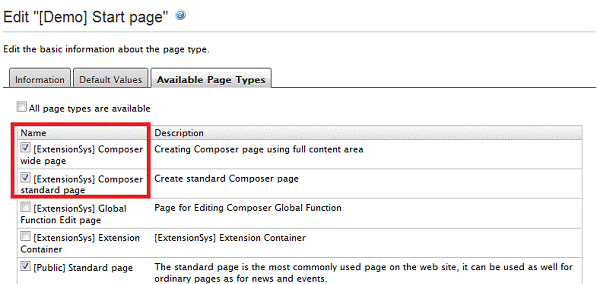
d. By default, the Composer page types will not available when creating a new page. In order to be able to create new Composer pages you need to enable the Composer page types in the “Available Page Types” tab for the “[Demo] Start page”.
3. Style Sheet issues
Symptom
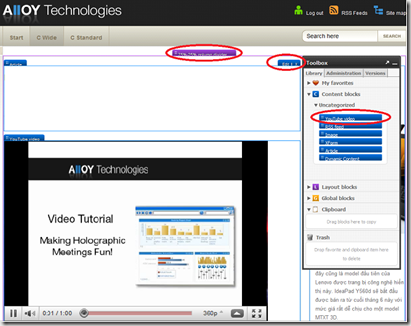
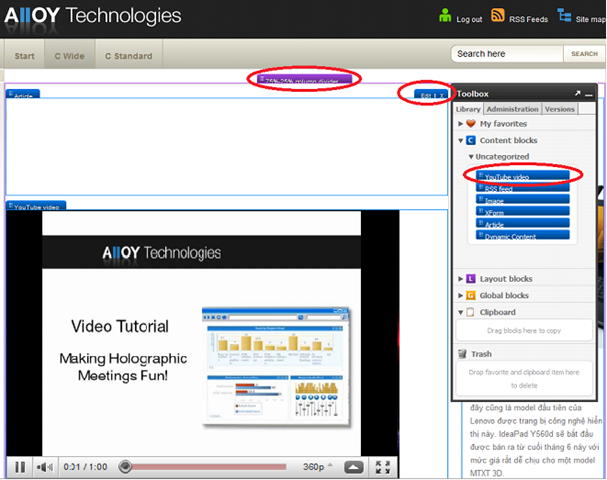
There are some style sheet issues when running Edit in Composer mode:
a.
b.
c.
d. The background is black when a content blog is edited.
In the Alloy site:In the normal site:
![clip_image002[7]](/globalassets/globals/xmlrpc/31887/2010/09/17/clip_image0027.gif "clip_image002[7]")
![clip_image002[9]](/globalassets/globals/xmlrpc/31887/2010/09/17/clip_image0029.gif "clip_image002[9]")
![clip_image002[11]](/globalassets/globals/xmlrpc/31887/2010/09/17/clip_image00211.gif "clip_image002[11]")
![clip_image002[13]](/globalassets/globals/xmlrpc/31887/2010/09/17/clip_image00213.gif "clip_image002[13]")
Workaround
Use the css attached here to replace the existing file at \Dropit\Plugin\Extension\UI\Styles\x3.min.css to fix most of the previously mentioned css styles issues.
4. JQuery library duplicated
Symptom
This is intended as an informative note, and since I’ve not experienced any issues personally, no resolution has been provided.
Duplicate importing and version conflict in JQuery library. Alloy template and Composer have and use their own JQuery and JQuery UI libraries. This could lead to a JavaScript error in Composer.
(Alloy template uses JQuery 1.2.6, and Composer uses JQuery 1.3.2.)
**************
You may find one more css overlap issue near top level menu that needs resolution but this should get you 98% complete. Hope this helps.

Comments