

EPiServer CMS - Install a Module From a Compressed File
Based on EPiServer CMS 6
EPiServer has a pretty cool way of allowing its developers to create modules which can easily be installed into a website through the Deployment Center, thus alleviating manual tasks of copying files, compiling projects, updating configs, etc. Typically this is done by creating it through the Module Installer Project. When poking around the good ol’ EPiServer World community you may also see references to related module “installers”. When you download the related file(s) you may find that all you have is a .zip file with no other file inside of it that look like what one might consider a traditional installer. In comes the Deployment Center option to “Install a Module from a Compressed File”.
Below you will find the steps to install a module from a compressed file…assuming this compressed file was created with this in mind:
1. Open the EPiServer Deployment Center.
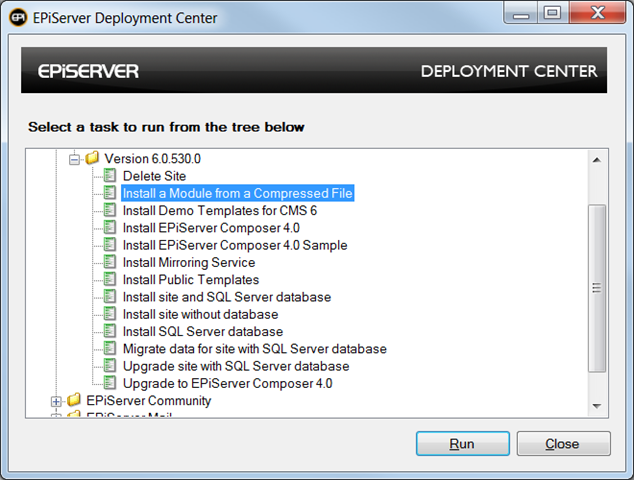
2. Select the option to “Install a Module from a Compressed File”.
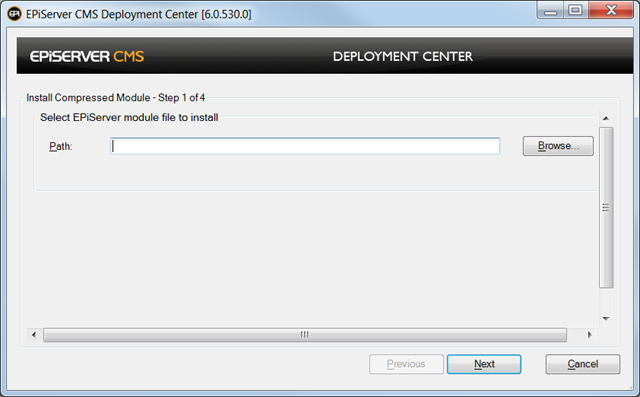
3. Select the “Browse” button and navigate to the relevant file you are trying to install.
4. Once you have found the relevant file select the “Open” button on the Browse window.
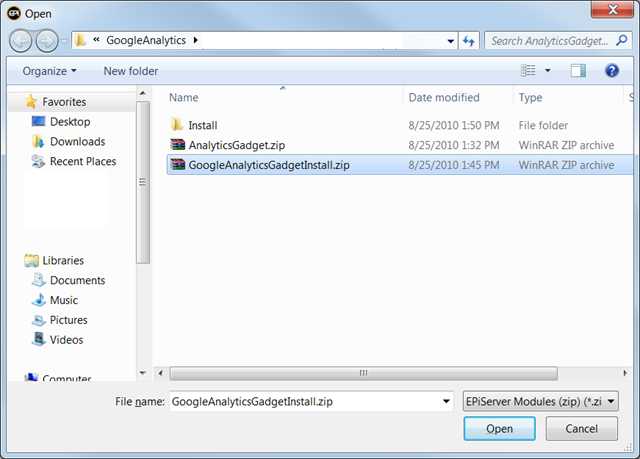
Note that you may need to select a drop down on the bottom right hand corner of the Browse window which allows you to choose between a .epimodule or .zip file.

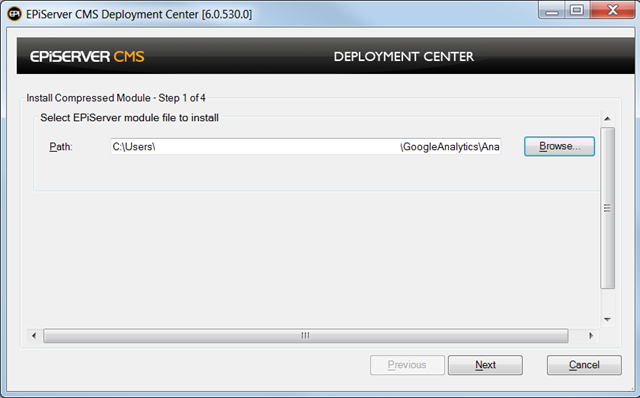
5. Select the “Next” button.
6. Review the “Install Options” and any other module specific information.
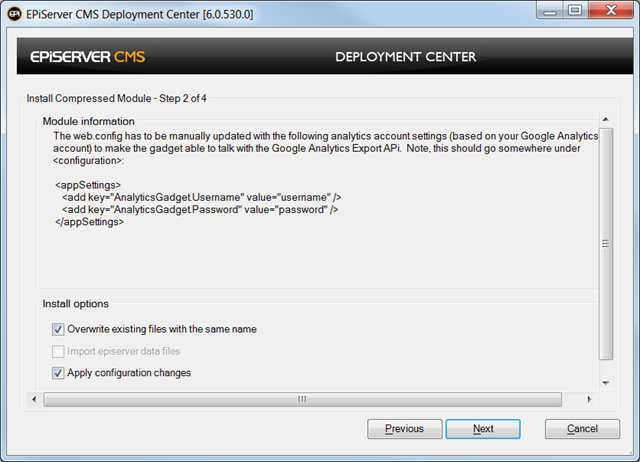
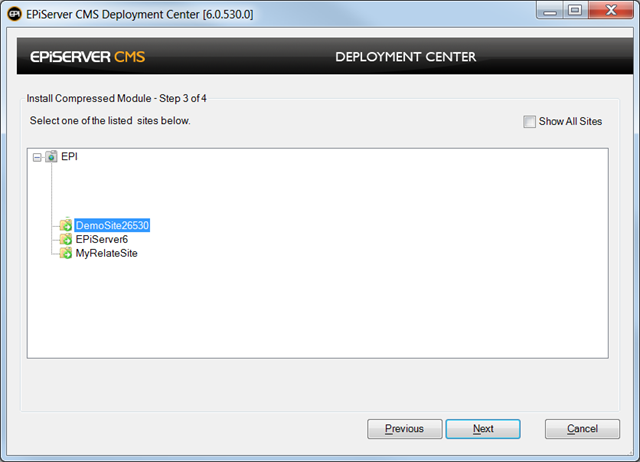
7. Select the site that you would like to install the module on followed by the “Next” button.
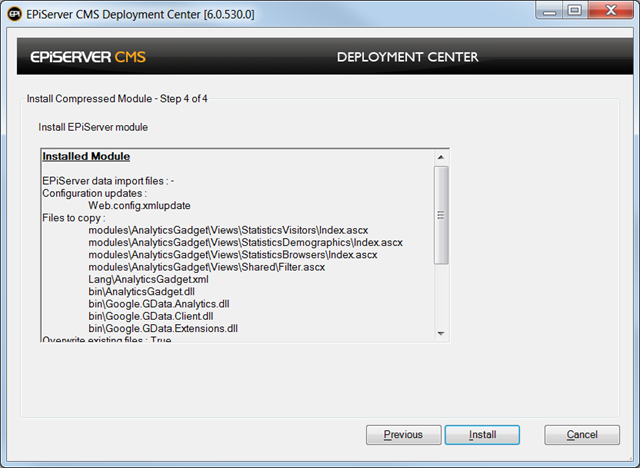
8. Select the “Install” button.
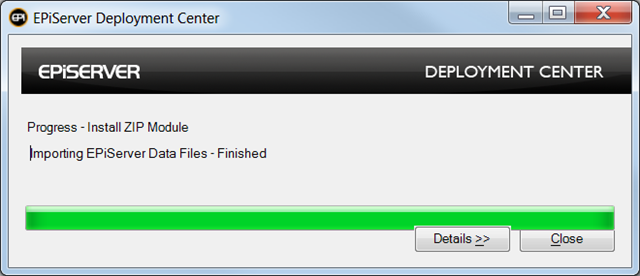
9. If all goes well you should see a window indicating that the install has finished. You can safely close this window and validate that everything has installed as expected.
Cheers!

Comments