

How to Add Custom Fields to a Users “My Page” in EPiServer Relate+.
- Login to CMS Edit mode.
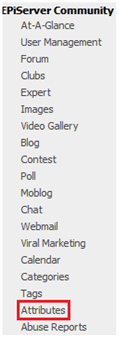
- Navigate to the "Community" tab.
- Select "Attributes".
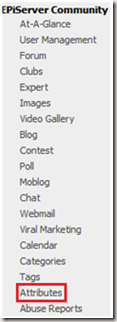
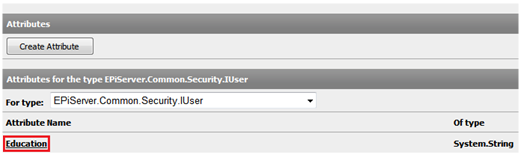
- Select the "Create Attribute" button to create a new attribute. This will enable you to work with this attribute in code without having to actually add it in the code itself.
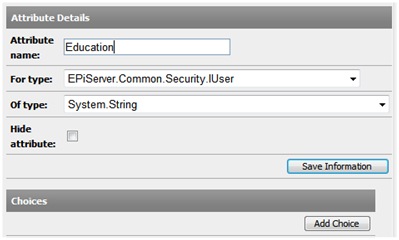
- Add a new Attribute with an appropriate name and type. In this example I used the name "Education" and the type "System.String" for type "EPiServer.Common.Security.IUser".
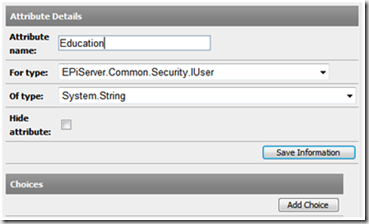
- Select the "Save Information" button.
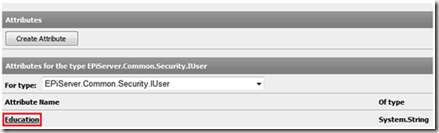
- As a result of adding this attribute you should now have a new attribute named "Education" to work with in your code and store for the user profile.
- Open the Visual Studio project for the Relate+ site titled EPiServer.Templates.RelatePlus.csproj from the sites root directory (e.g. C:\EPiServer\Sites\<site name>\).
- Update the language files used for your site. This will require updating the section for “mypage” and for “editprofile” since these are the respective areas for displaying user profile data and editing it. In my case I simply updated \Sites\<mysitename>\lang\relatePlusEN.xml with the following areas highlighted in red:
- <mypage>
<personalinfo>
...
<education>Education:</education>
...
</personalinfo>
</mypage> - <editprofile>
...
<education>Education:</education>
...
<editprofile>
- <mypage>
- In order for the user to be able to edit their education info add the following in an appropriate location in \Templates\RelatePlus\UserControls\MyPageUserControls\EditProfile.ascx. In my case I put this in the “pnlEditProfile” panel right below the similar code for “Lives In” (search for “lblLivesin”). Code Snippet
- <li>
- <asp:Label ID="lblEducation" runat="server" Text="<%$ Resources: EPiServer, mysettings.editprofile.education %>" AssociatedControlID="txtEducation" />
- <asp:TextBox ID="txtEducation" runat="server" ValidationGroup="editProfileGroup" CssClass="text" />
- </li>
-
In order for the education info to be rendered for the profile update \Templates\RelatePlus\Pages\MyPage.aspx with some translation logic for globalization and a label field. In my case I put this in the "personalInfo" div tag right below the similar code for “Lives In” (search for “lblLivesIn”).
Code Snippet- <li>
- <%= Translate("/mypage/personalinfo/education") %>
- <asp:Label ID="lblEducation" runat="server" />
- </li>
- Enable save and retrieval of the attribute value by adding the following methods to \ Templates\RelatePlus\ExtensionMethods.cs: Code Snippet
- /// <summary>
- /// Gets the educ
- /// ation for the user
- /// </summary>
- /// <param name="user">The user to get education field for</param>
- /// <returns>The education attribute</returns>
- public static string GetEducation(this IUser user)
- {
- return user.GetAttributeValue<string>("Education");
- }
- /// <summary>
- /// Sets the education for the user
- /// </summary>
- /// <param name="user">The user to set education field for</param>
- /// <param name="education">The education information for the user</param>
- public static void SetEducation(this IUser user, string education)
- {
- user.SetAttributeValue("Education", education);
- }
- Update \Templates\RelatePlus\Pages\MyPage.aspx.cs to include the following in the OnLoad() method: Code Snippet
- lblEducation.Text = CurrentMyPage.User.GetEducation().FormatContentText();
- Update \Templates\RelatePlus\UserControls\MyPageUserControls\EditProfile.ascx.cs to include the following in the DataBind() method: Code Snippet
- // Set the education value
- txtEducation.Text = DisplayUser.GetEducation();
- In order to save this data when the user clicks the “Save” button update \Templates\RelatePlus\UserControls\MyPageUserControls\EditProfile.ascx.cs to include the following in the btnSave_Click() method: Code Snippet
- // Update the education
- displayUserClone.SetEducation(txtEducation.Text.Trim());
- Build the project.
- Navigate to your user profile (i.e. the “My Page” tab).
- Select the "Edit Settings" link.
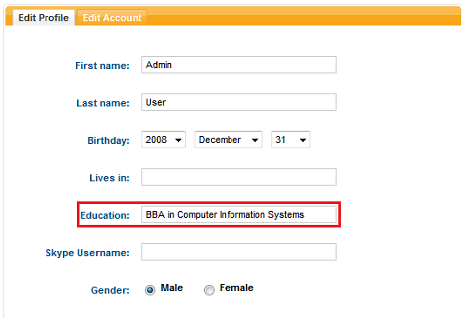
- You should now be able to enter information in the "Education" text box.
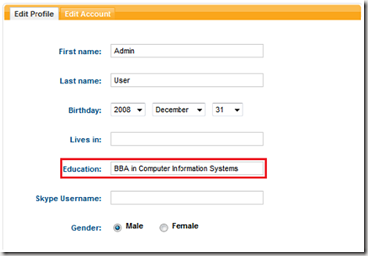
- Save the profile.
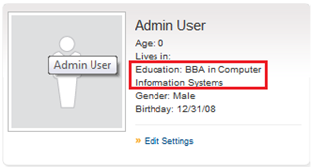
- Navigate back to the view mode for your profile. There you have it. You should now be able to see the added information in your user profile.
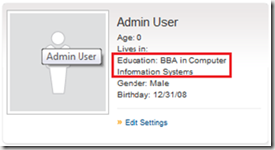
Again, this is a simple example for a basic edit field but it should help get you started down the path of bigger and better things. Enjoy!
The out-of -the-box functionality included with the Relate+ templates for user profiles is excellent. Some companies may wish to extend this with additional information. This is very easy to do. I wanted to test this capability myself so I implemented it and thought it might be useful to post the steps I followed. The sample below is pretty basic and simply provides a text field for entry of a string. However, it should provide the necessary information to help get you started down the path of implementing different types of controls desired for your solution as the process is generally the same.

Comments