

Getting EPiServer FileManager into Relate+ Clubs – Verbose Version
In October, Per Hemmingson wrote a great blog regarding how to implement the CMS file manager in Relate+ Clubs.
The CMS File Manager includes robust functionality not included in the Community Document Archive API’s. Per’s solution to take advantage of the CMS functionality is excellent! After implementing it myself I thought some people might benefit from having a verbose version of the all of the necessary steps. For some this may be overkill. For others it may be helpful. You’ll probably notice I borrowed some of Per’s blog verbiage. Fortunately he’s OK with this. :) All credit for the solution should go to Per.
The following steps will help you get started in setting this up for your Relate+ site. Obviously this is simply an example and can be tweaked according to your need.
- Open the Visual Studio project for the Relate+ site titled EPiServer.Templates.RelatePlus.csproj from the sites root directory (e.g. C:\EPiServer\Sites\<site name>\).
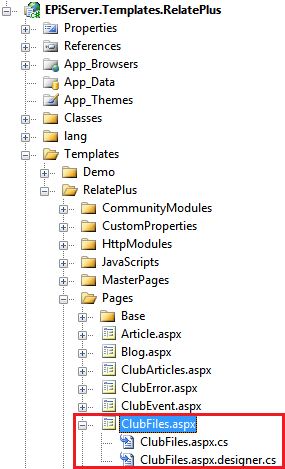
- In the project, under /Templates/RelatePlus/Pages, create a new page template called “ClubFiles”.
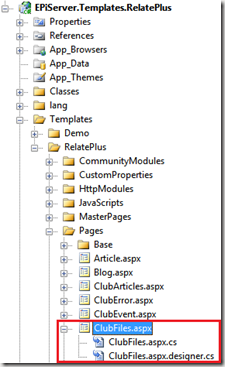
- For more information on creating page templates visit the “how to” page on EPiServer Page Templates.
-
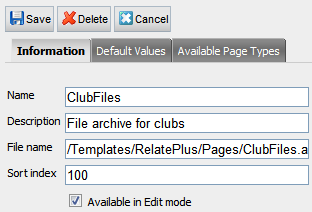
Ensure the associated page type is added to CMS in Admin mode.
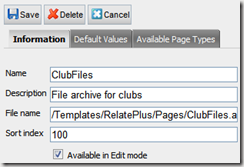
- For more information on creating page types visit the “how to” page on EPiServer Master Pages.
- The next several steps require copying files from the EPiServer Demo Templates. If you do not have these templates installed visit EPiServer Demo Templates and follow the instructions to install them.
- Then from EPiServer Demo Templates:
FileManager WebControl
- Copy the FileManager WebControl assembly(EPiServer.Demo.Filemanager.dll) from the bin directory of a site that has the Demo templates installed over to the Relate+ site bin directory (e.g. C:\EPiServer\Sites\<site name>\bin).
- In your Visual Studio project add a reference to the EPiServer.Demo.Filemanager assembly.
- **NOTE: Since WebControls only require the use of the assembly, not the actual code, adding the code files to the project is not necessary here. In other steps below you will need to copy the code.
FileManager User Controls
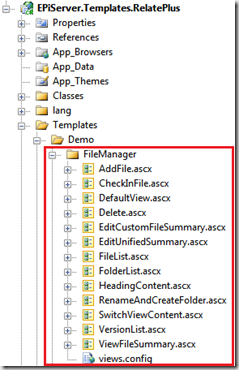
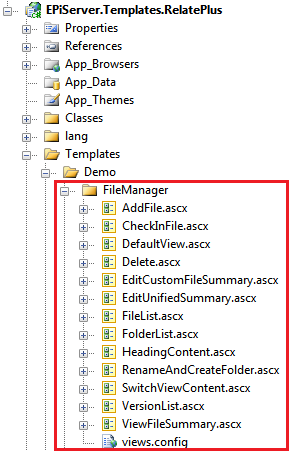
- Create a “Demo” folder as a sub-folder of “Templates” in the Relate+ project .
- Copy the entire contents of the File Manager UserControl folder (e.g. C:\EPiServer\Sites\<my site>\Templates\Demo\FileManager) to the “Demo” folder of the Relate+ project. The easiest way to do this is to drag-and-drop the folder from Windows Explorer to the new “Demo” folder in the Visual Studio Relate+ project.
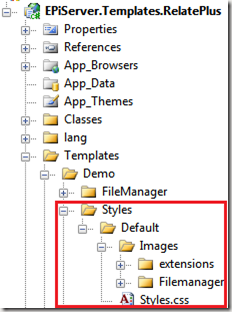
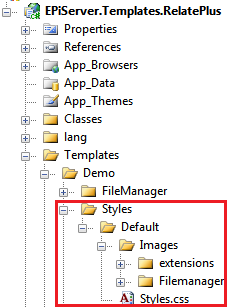
- Create a “Styles” folder in the Relate+ project as a subfolder of /Templates/Demo.
- Create a “Default” folder as a subfolder of /Templates/Demo/Styles.
- Create a “Images” folder as a subfolder of /Templates/Demos/Default/Styles.
- Copy the entire contents of the “FileManager” and “extensions” folders to the previously created “Images” folder. The easiest way to do this is to drag-and-drop the folders from Windows Explorer to the new “Images” folder in the Visual Studio Relate+ project.
- Copy the stylesheet Styles.css to the previously created “Images” folder.
- Open the Styles.css stylesheet.
- All items in the stylesheet are not necessary. Remove everything but the sections titled: “Documents”, “File Manager Control”, and “Toolbar BUTTONS” to avoid conflicts.
- Open /RelatePlus/UserControls/Headers.ascx.
- In the Header.ascx file add a reference to the Styles.css stylesheet: Code Snippet
- <link rel="stylesheet" media="screen" href='<%=ResolveUrl("~/Templates/Demo/Styles/Default/Styles.css") %>' type="text/css" />
Language File
- Include the FileManager language text by copying file demo_EN.xml from the Demo Templates lang folder (e.g. C:\EPiServer\Sites\<my site>\lang) to your Relate+ sites lang folder (e.g. C:\EPiServer\Sites\<my site>\lang). The easiest way to do this is to drag-and-drop the file from Windows Explorer to the new “lang” folder in the Visual Studio Relate+ project.
Checkbox
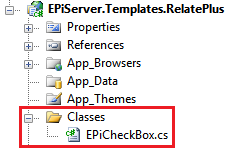
- Create a new folder under the root called "Classes" in the Relate+ project.
- Copy the file EPiCheckBox.cs from the Demo /Templates /Templates/Demo/Workroom/Core to the new "Classes" folder.
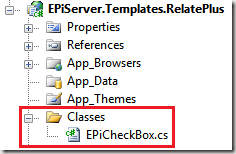
- Open the file EPiCheckBox.cs file.
- Change the namespace to "EPiServer.Templates.RelatePlus.Classes".
- Change the registration of the checkbox control in /Templates/Demo/FileManager/FileList.ascx to the appropriate Assembly and Namespace. Initially it is set to: Code Snippet
- <%@ Register TagPrefix="EPiServer" Assembly="EPiServer.Templates.Demo" Namespace="EPiServer.Templates.Demo.Workroom.Core" %>
- Based on these instructions it should be changed to: Code Snippet
- <%@ Register TagPrefix="EPiServer" Assembly="EPiServer.Templates.RelatePlus" Namespace="EPiServer.Templates.RelatePlus.Classes" %>
- The FileManager VersionList also uses the checkbox class. Change the registration of the checkbox control in /Templates/Demo/FileManager/VersionList.ascx to the appropriate assembly and namespace. Follow the same steps as the last two above in the VersionList.ascx file.
-
In web.config register the File Manager Web control:
- <configuration>
- <configSections>
- ...
- <sectionGroup name="episerverModules">
- <section name="episerver.FileManager" type="EPiServer.Demo.FileManager.Configuration.FileManagerSection, EPiServer.Demo.FileManager"/>
- </sectionGroup>
- ...
- </configSections>
Code Snippet - Add one more addition to the tail of web.config:
- </applicationSettings>
- <episerverModules>
- <episerver.FileManager configSource="Templates\Demo\FileManager\views.config" />
- </episerverModules>
- </configuration>
Code Snippet - Still in the web.config, but in the Pages declaration, add:
- <pages validateRequest="false" enableEventValidation="false">
- <controls>
- ...
- <add tagPrefix="FileManager" namespace="EPiServer.Demo.FileManager.WebControls" assembly="EPiServer.Demo.FileManager"/>
- <add tagPrefix="EPiServer" namespace="EPiServer.Templates.RelatePlus.Classes" assembly="EPiServer.Templates.RelatePlus" />
- </controls>
- </pages>
Code Snippet - You will need to add some additional “using” statements to get the code to compile. The final code behind file, including these using statements, appears as follows:
- using System;
- using System.Collections.Generic;
- using System.Web;
- using System.Web.UI;
- using System.Web.UI.WebControls;
- using System.Web.UI.HtmlControls;
- using EPiServer;
- using EPiServer.Core;
- using EPiServer.DataAbstraction;
- using EPiServer.Web.WebControls;
- using EPiServer.Web.Hosting;
- using EPiServer.Demo.FileManager;
- using EPiServer.Community.Club;
- using EPiServer.Templates.RelatePlus.Classes;
- using EPiServer.BaseLibrary;
- namespace EPiServer.Templates.RelatePlus.Templates.RelatePlus.Pages
- {
- public partial class ClubFiles : EPiServer.Templates.RelatePlus.Pages.Base.PageBase
- {
- private string _fileFolderRoot;
- /// <summary>
- /// Gets or sets the file folder root.
- /// </summary>
- /// <value>Path to root folder for files.</value>
- public string FileFolderRoot
- {
- get
- {
- if (String.IsNullOrEmpty(_fileFolderRoot))
- {
- _fileFolderRoot = GetVPPFolder();
- }
- return _fileFolderRoot;
- }
- }
- protected void Page_Load(object sender, EventArgs e)
- {
- }
- protected override void OnLoad(EventArgs e)
- {
- // Call base
- base.OnLoad(e);
- // Set view options
- if (Master.IsClubAccessable)
- {
- if (!IsPostBack)
- {
- FileManagerControl.DataBind();
- if (FileManagerControl.CurrentVirtualDirectory == null)
- {
- GetVPPFolder();
- }
- }
- }
- else
- {
- ucNoClubAccess.Visible = true;
- }
- }
- private string GetVPPFolder()
- {
- // stolen from how episerver.blogs handle file uploads, changed blog page id to use club id
- string path = "";
- UnifiedDirectory vdir;
- var provider = GetClubProvider(out vdir);
- path = VirtualPathUtility.AppendTrailingSlash(VirtualPathUtility.Combine(vdir.VirtualPath,
- Master.CurrentClub.ID.ToString()));
- UnifiedDirectory clubdir = null;
- if (!(provider.DirectoryExists(path)))
- {
- clubdir = ((UnifiedDirectory)vdir).CreateSubdirectory((Master.CurrentClub.ID.ToString()));
- }
- else
- {
- clubdir = (UnifiedDirectory)provider.GetDirectory(path);
- }
- return clubdir.VirtualPath;
- }
- private VirtualPathVersioningProvider GetClubProvider(out UnifiedDirectory vdir)
- {
- const string vppProviderName = "SiteGlobalFiles";
- const string clubfiles = "clubFiles";
- var provider = (VirtualPathVersioningProvider)VirtualPathHandler.GetProvider(vppProviderName);
- if (provider.DirectoryExists(provider.VirtualPathRoot + clubfiles))
- {
- vdir = (UnifiedDirectory)provider.GetDirectory(provider.VirtualPathRoot + clubfiles);
- }
- else
- {
- vdir = (UnifiedDirectory)provider.GetDirectory(provider.VirtualPathRoot);
- vdir = vdir.CreateSubdirectory(clubfiles);
- }
- return provider;
- }
- }
- }
Code Snippet - Navigate to CMS Admin mode.
- Select the “Page Type” tab.
- Under “Page Types” select “Clubs”.
- Select the “Settings” button.
- Select the “Available Page Types” tab.
- Ensure that the “ClubFiles” checkbox is selected. This will allow ClubFiles page types to be added underneath Clubs page types.
- Select “Save”.
- Navigate to Edit mode.
- In the structure, select “Clubs”.
- Right click and select “Create New”.
- Select the “ClubFiles” page type.
- Give it a Name such as “Files”.
- Select the “Save and Publish” button.
- In the site tree structure select “Clubs”.
- Select the “CreateClub” button on your Clubs page.
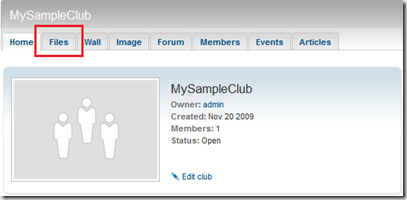
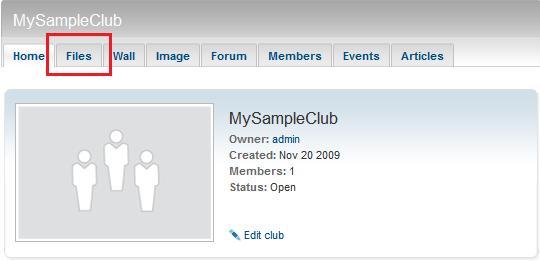
- Create a “Club Name” (e.g. “MySampleClub” and note the new “Files” tab!
Fixing the Bread Crumb
The File Manager is built for EPiServer CMS Pages and the bread crumb control expects the files to be in the page’s directory, where it gets the page owner and displays the Page Name. This will not work for Community/Relate+ clubs, so we need to change it to get the Club Name of that folder.
The current solution is a quick hack where it tries to parse the folder name, which is the club id and then get that club. Anyhow, in the usercontrol /Templates/Demo/FileManager/HeadingContent.ascx we modify the method AppendBreadCrumbs to:
- /// <summary>
- /// Appends the cookie crumb links to the control upplied as targetControl.
- /// </summary>
- /// <param name="currentDirectory">The current directory.</param>
- /// <param name="targetControl">The target control to append cookie crumb links to.</param>
- private void AppendBreadCrumbs(UnifiedDirectory currentDirectory, Control targetControl)
- {
- if (currentDirectory == null || FileManager.RootVirtualPath == currentDirectory.VirtualPath)
- {
- // Reset the link enumeration when we reach the topmost directory.
- _linkId = 0;
- }
- else
- {
- // Append cookie crumb for the parent directory before adding for the current directory.
- AppendBreadCrumbs(currentDirectory.Parent, targetControl);
- Literal slash = new Literal();
- slash.Text = " / ";
- targetControl.Controls.Add(slash);
- }
- string directoryName = currentDirectory.Name;
- if (currentDirectory.Parent != null)
- {
- int clubID;
- // a hack to make it work. Will try parse all folders
- if (int.TryParse(currentDirectory.Name, out clubID))
- {
- Club currentClub = ClubHandler.GetClub(clubID);
- if (currentClub != null)
- {
- directoryName = currentClub.Name;
- }
- }
- }
- LinkButton b = new LinkButton();
- b.ID = "link" + _linkId++;
- b.Text = directoryName;
- b.CommandArgument = currentDirectory.VirtualPath;
- b.CommandName = FileManagerCommandName.SelectFolder;
- b.Command += new CommandEventHandler(RaiseCommand);
- targetControl.Controls.Add(b);
- }
Be sure to add the appropriate using statement for the Club class at the head of the AppendBreadCrumbs file:
using EPiServer.Community.Club;
Then the “final” solution looks like this:
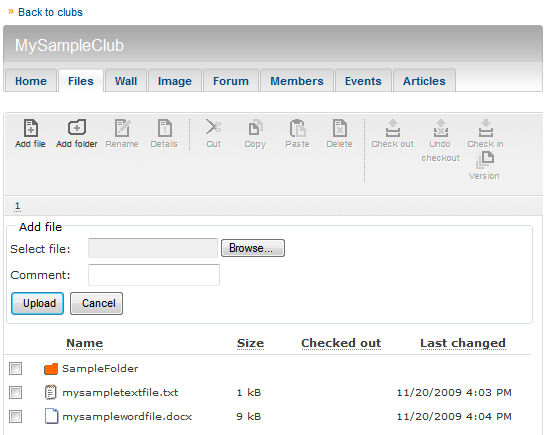
And in Admin mode, File Management:
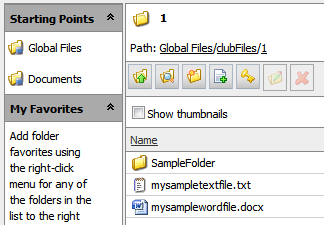
That’s it! The file manager should now be working in your Relate+ site.
Comments and feedback are welcome.

Comments