

EPiServer Composer 3.2.x Installation and Configuration Instructions – Including the Extra Details You May Want to Know
Some good documentation on initial Composer installation steps already exists. I’d rather not re-invent the wheel here but instead will point you to that information and expand upon it with additional details to help you get started.
Initial Installation
1) Check the EPiServer Version Relations matrix to ensure you are installing the correct Composer version which will work with your CMS version:
http://world.episerver.com/Documentation/Categories/Version-Relations/EPiServer-CMS-5-Relations/
Note, if you are installing with CMS 5.2 R2 you may notice that the Composer version indicated is labeled “RC1”. If you are wondering if a release candidate is the correct version, it is.
2) Follow the installation steps posted at the link below. Please note, the final section titled “Setting up and Configuring EPiServer Composer 3.2.6” on this page is very brief, so I’ve included more detailed information below in the “Additional Set Up and Configuration” section. You may find it beneficial to return to this page and follow my instructions once you reach this point.
Note, during Composer installation the MSI will show an initial dialog and will close automatically without notification upon completion.
3) If you need to add a license after installation you will have to create the appropriate directory structure and rename the license file. The correct directory path is in a sub-directory of your site specific installation path at in a \Dropit\License\. An example is below:
C:\EPiServer\Sites\<mySiteName>\Dropit\License
The license must be placed in this directory and named “Extension3License.config”. Rename it accordingly if necessary.
Additional Set Up and Configuration
1) Compile ComposerSampleTemplates.csproj:
a) After the installation, locate the “ComposerSampleTemplates” project. This file is located at your site installation path (e.g. C:\EPiServer\Sites\<mySiteName>\ComposerSampleTemplates.csproj
b) Open the file in a text editor rather than Visual Studio (so it can be edited directly).
c) Find the section that looks similar to the following:
<IISUrl>http://localhost/</IISUrl>
d) Change “localhost” to your actual site URL. Include port if necessary (e.g. <IISUrl>:17000">http://JEFF-DESKTOP:17000/</IISUrl>)
Note, if you do not make this change you may see the following error:

e) Save and close the csproj file.
f) Re-open the csproj file with Visual Studio and build the project. This will create a DLL in the site bin directory for the Composer functions and page templates.

2) Set the page ID of root Composer data container:
a) Login to the site.
b) Switch to Admin mode.
c) Navigate to the “Config” tab.
d) Select “Plug-in manager” in the “’Tools” section.
e) Select the “Dropit.Extension” plug-in.
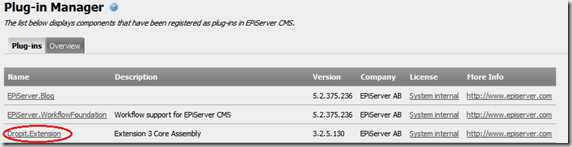
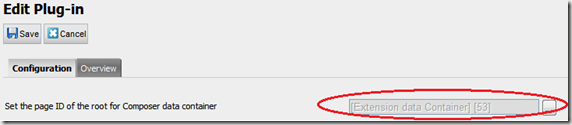
f) Set the Root page ID to the [Extension data Container] page by navigating to it via the browse button. This page was added to your tree structure as a part of the Composer installation.
3) Import page and function type definitions:
a) In Admin mode, go to "Composer - Import/Export" in the “Tools” section.
b) Select the “Browse…” button and locate the file “ComposerSampleTemplatesData.xml” located in the “Setup” folder for the installed site (by default this is c:\EPiServer\Sites\<mySiteName>\Setup).
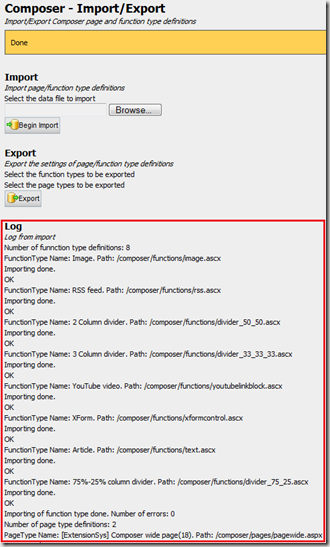
c) Select the “Begin Import” button. If everything is successful you should see a log of several new items added below the “Export” section as pictured below.
5) Configure rules and permissions:
a) Switch to Admin mode.
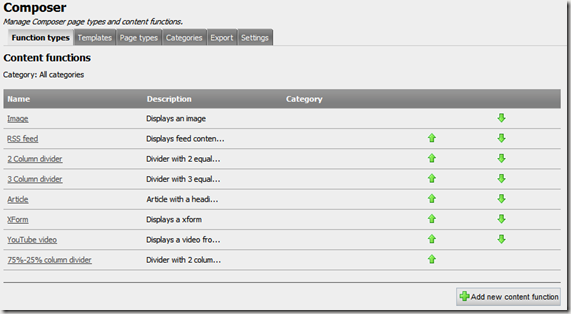
b) On the “Admin” tab navigate to the “Tools” section and select “Composer” to display the page below.
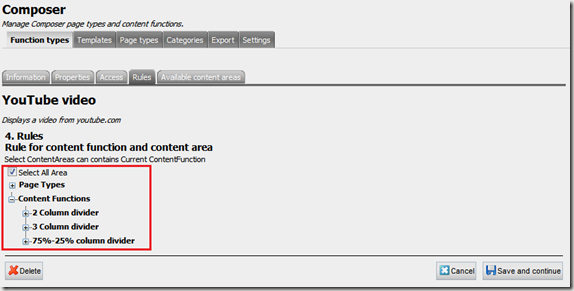
c) For each Content function ensure that the appropriate rules are configured. These rules determine where each function is able to be used. Start by selecting the Content function you would like to configure.
d) Select the “Rules” tab.
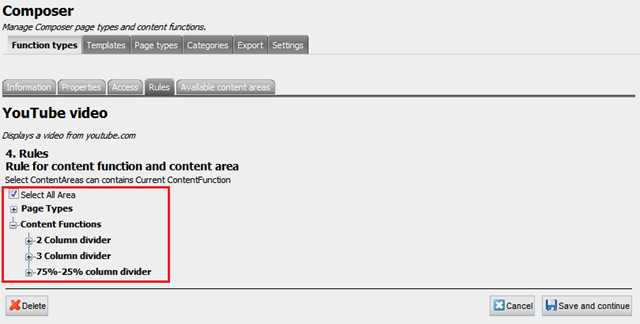
e) Configure rules as appropriate. For example, select “YouTube video” to display the page below. In this page you can determine in which pages/content functions the user will be able to add YouTube videos. Configuration is done by checking/un-checking items under each page type or content function.
Note, if you choose to skip this step, and you later start seeing errors suggesting that you do not have permissions to use certain functions this is likely due to these settings.
Troubleshooting
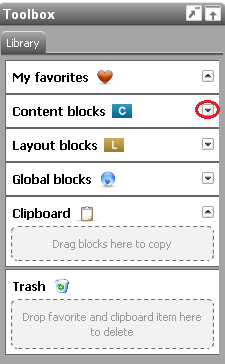
1) What if when using the Composer toolbox selection of the arrow on the right side of the control does not result in expansion of the options below that item? While I don’t know if it is the shortest path to resolution, a reboot will typically fix this issue.
2) What if when attempting to drag content blocks to layout blocks and an error is displayed indicating a lack permissions to use the function (i.e. “You do not have permission to create the content function here”)? See the “Configure rules and permissions” section above.

Comments