
EPiImage Part 3: EPiImageGallery Property
The EPiImageGallery property gives you preview thumbnails in edit mode, drag and drop sorting and the possibility to add an image description to each image.
This is the third part of a four part series that started with EPiImage Part 1: EPiImageResizer
EPiImageGallery Property
The EPiImageGallery property is a custom property that have the following features:
- Thumbnail view of all the pictures in the gallery in edit mode
- Click the “i” button to preview the image and add an image description
- Drag and drop sorting
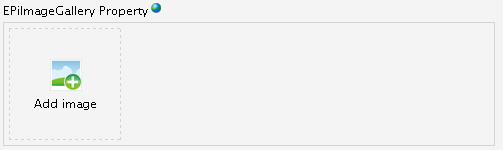
This is what the EPiImageGallery Property looks like in edit mode if no image is selected. If clicked the normal file selection dialog box is opened.

This is what the EPiImageGallery Property looks like in edit mode if it contains images. A thumbnail of each image is shown, and the images can be dragged and dropped into the right sequence. On mouse over the “i” button is shown, if clicked it opens a preview window where image description can be added.

If you click the “i” button you will see a bigger preview of the image and you have the possibility to add a description.
How do I start using it?
Simply download the module from EPiCode and install it using EPiServer Deployment Center. (It just copies in a few files, it doesn’t touch your web.config or require a rebuild)
You will now get a new property type called “EPiImageGallery”:

How do I access the property value?
You can use the EPiImagegallery Viewer user control, or you can access the collection of images directly using the GetImages(CurrentPage) method.
Here is an example:
   //Get the property
    if (!CurrentPage.Property["EPiImageGalleryProperty"].IsNull)
    {
      EPiImageGalleryProperty galleryProperty =
        CurrentPage.Property["EPiImageGalleryProperty"] as EPiImageGalleryProperty;
      if (galleryProperty != null)
      {
        //Get the images by calling GetImages(CurrentPage)
        EPiImageGalleryImageCollection imageCollection =
           galleryProperty.GetImages(CurrentPage);

        //Databind the image collection to a repeater
        repGallery.DataSource = imageCollection;
        repGallery.DataBind();
      }
    }
<asp:Repeater ID="repGallery" runat="server">
<HeaderTemplate><ul></HeaderTemplate>
<ItemTemplate>
<li>
Image url:
<%# (Container.DataItem as EPiImageGalleryImage).ImageURL %><br />
Description:
<%# (Container.DataItem as EPiImageGalleryImage).Description %>
</li>
</ItemTemplate>
<FooterTemplate></ul></FooterTemplate>
</asp:Repeater>
Have feedback? Want to help out?
Feel free to email or twitter me with your feedback: @ahaneng :-)
And finally: Thank you to Making Waves for donating it to EpiCode!
Next and last post: EPiImageGallery Viewer.

Comments